Search it. Save it. Draw it or trace it.

Find a picture of anything with search that is safe for children, keep it in My Images, then copy it from the screen in Draw Mode or trace it through the camera onto paper. With Pro, Create with AI turns a description — or a photo — into a clean outline to draw.

How it works

Three steps, and the third one is the drawing.

  1. Step 1: Search it

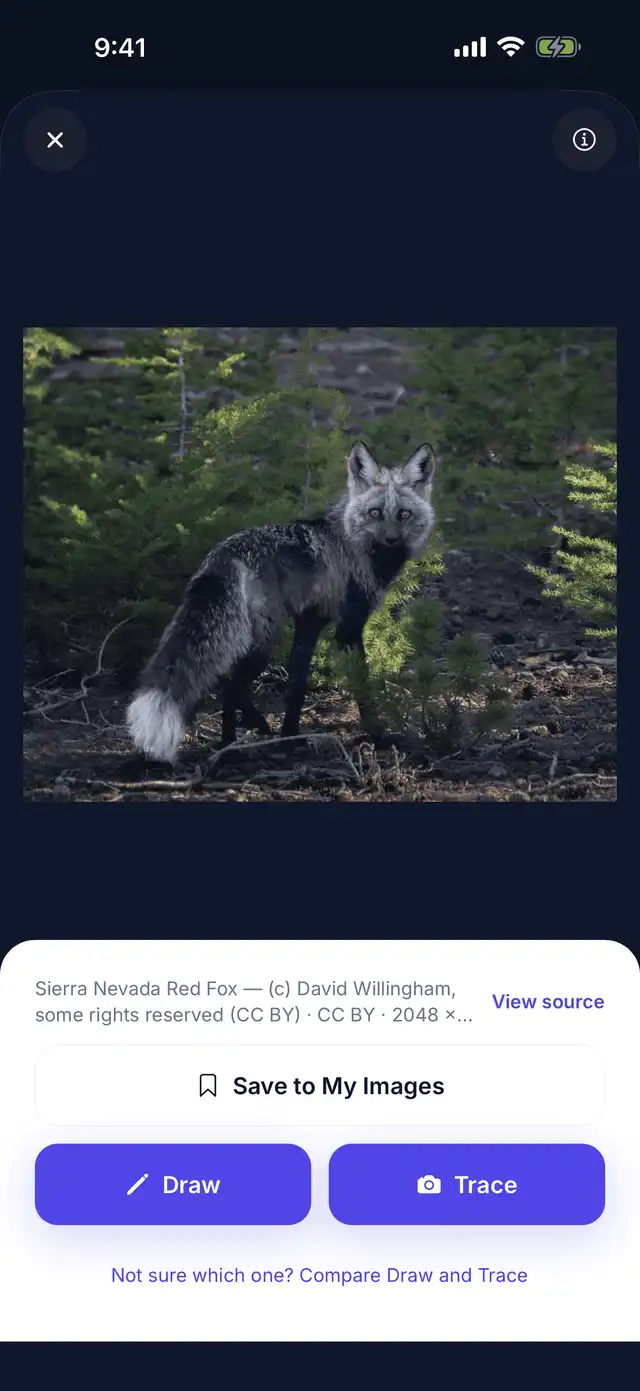
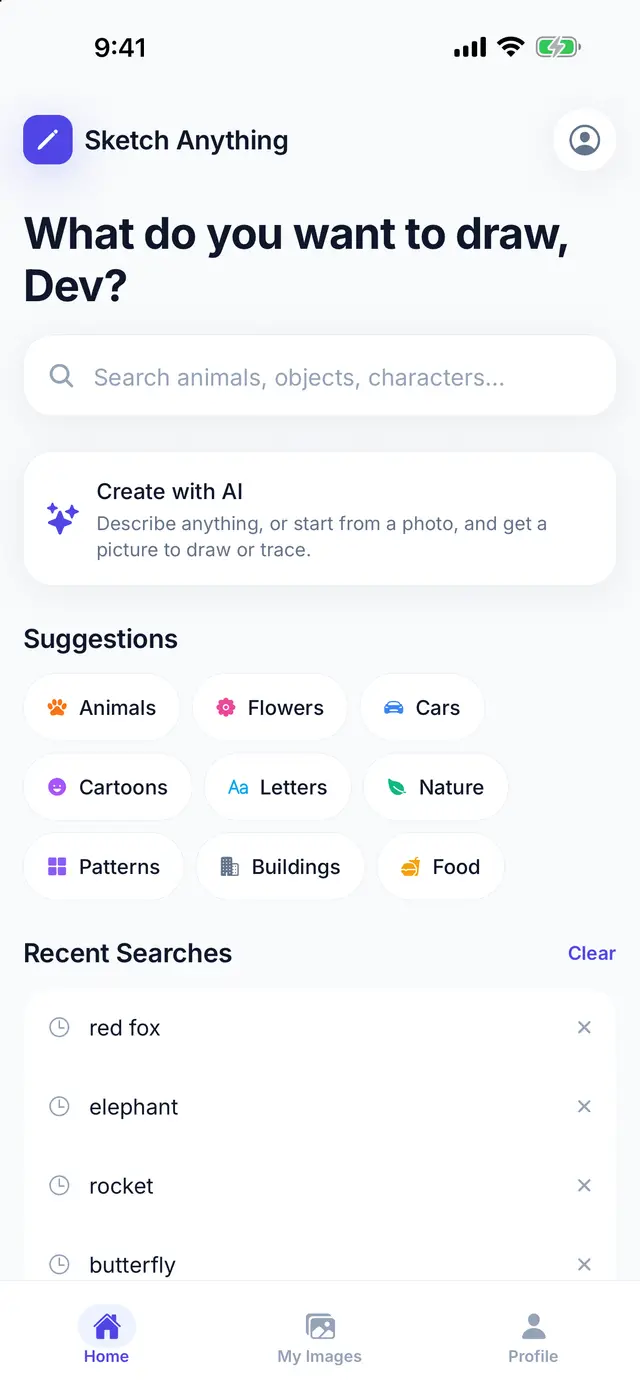
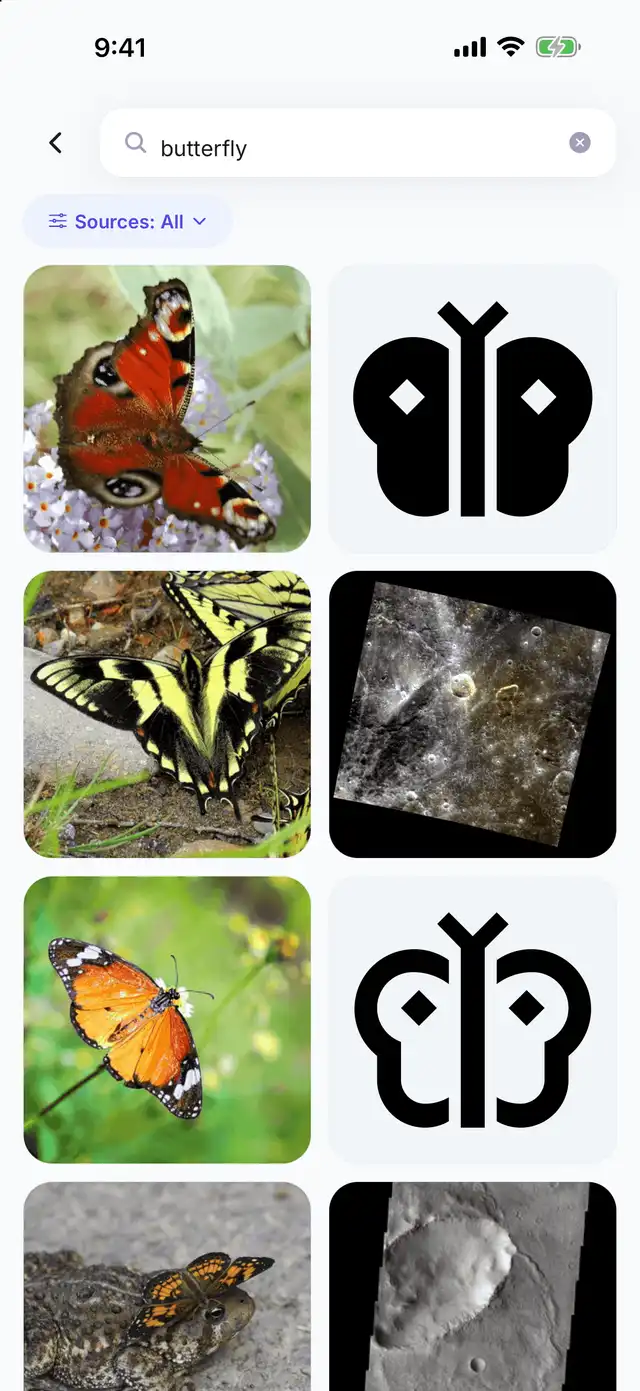
    Type what you want to draw. Sketch Anything asks nine image sources at once and brings back photographs, drawings and simple outlines, with Safe Search always on.

  2. Step 2: Save it

    Keep the ones you like in My Images. Rename them, mark the favourites, and find them again on any phone you sign in on.

  3. Step 3: Draw it or trace it

    Open a picture in Draw Mode to copy it from the screen, or in Trace Mode to trace it through the camera onto your paper.

What you can do

Five things the app does, and the screens they happen on.

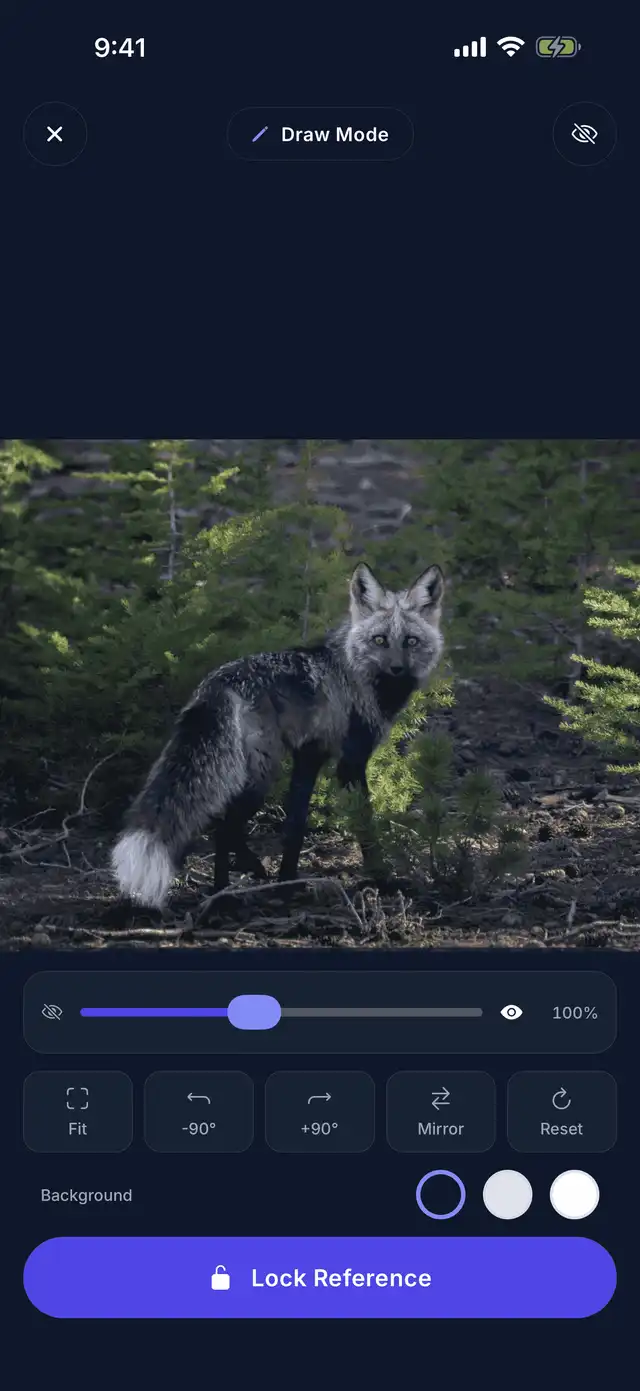
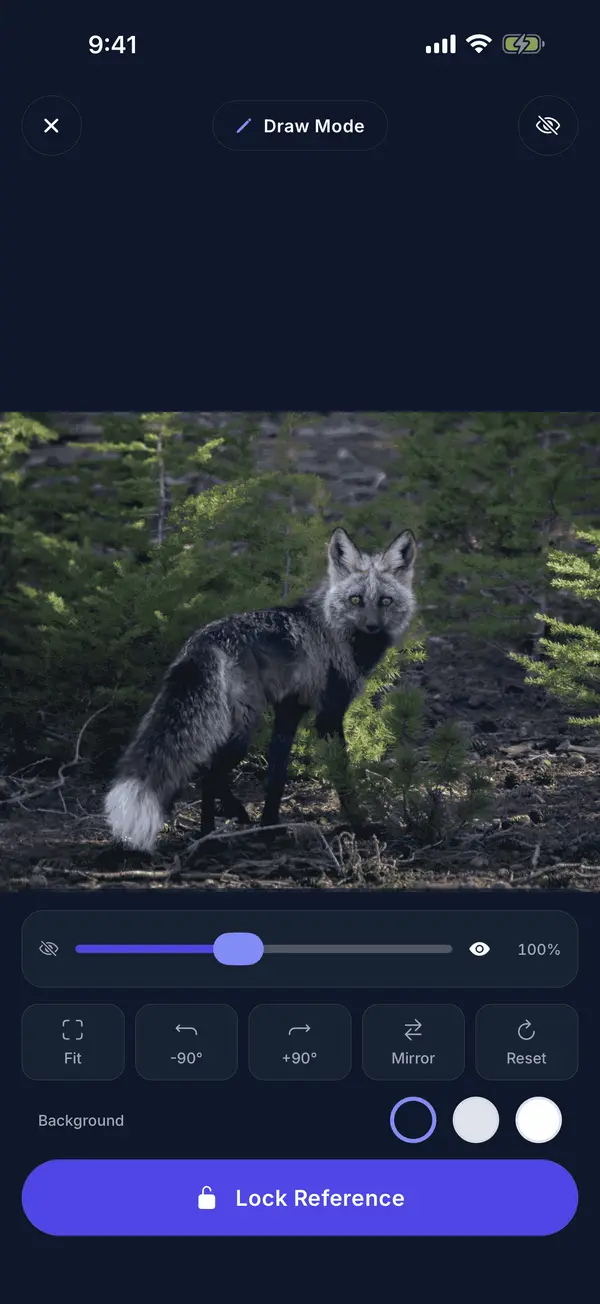
Draw Mode holding a photograph of a fox on screen, with an opacity slider at 100% and fit, rotate, mirror and reset controls below it.

Draw Mode

Draw Mode holds the picture still on the screen while you copy it. Fit it to the screen, zoom in on the part you are working on, rotate it, mirror it, and fade it down as your own lines appear.

Lock the reference so a stray finger cannot move it, put it on a light or dark background, and the screen stays awake for as long as you are drawing.

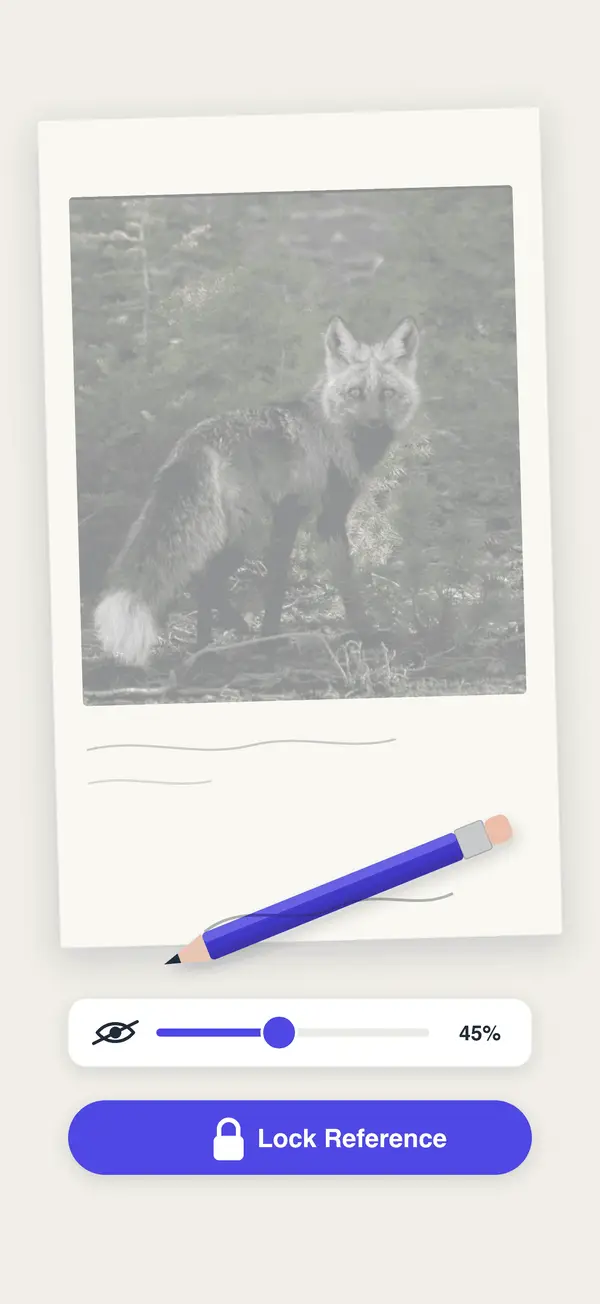
Illustration of Trace Mode: a phone above a sheet of paper with the reference picture faded onto the page, an opacity slider and a lock button, and a pencil resting alongside.
Illustration of Trace Mode

Trace Mode

Trace Mode lays the picture over the live camera. Rest the phone above your paper, look through the screen, and draw the lines where you see them.

Set how strong the picture is, lock focus and exposure so the camera stops hunting, turn the torch on in a dim room, and switch to the outline filter when you want lines instead of a photograph.

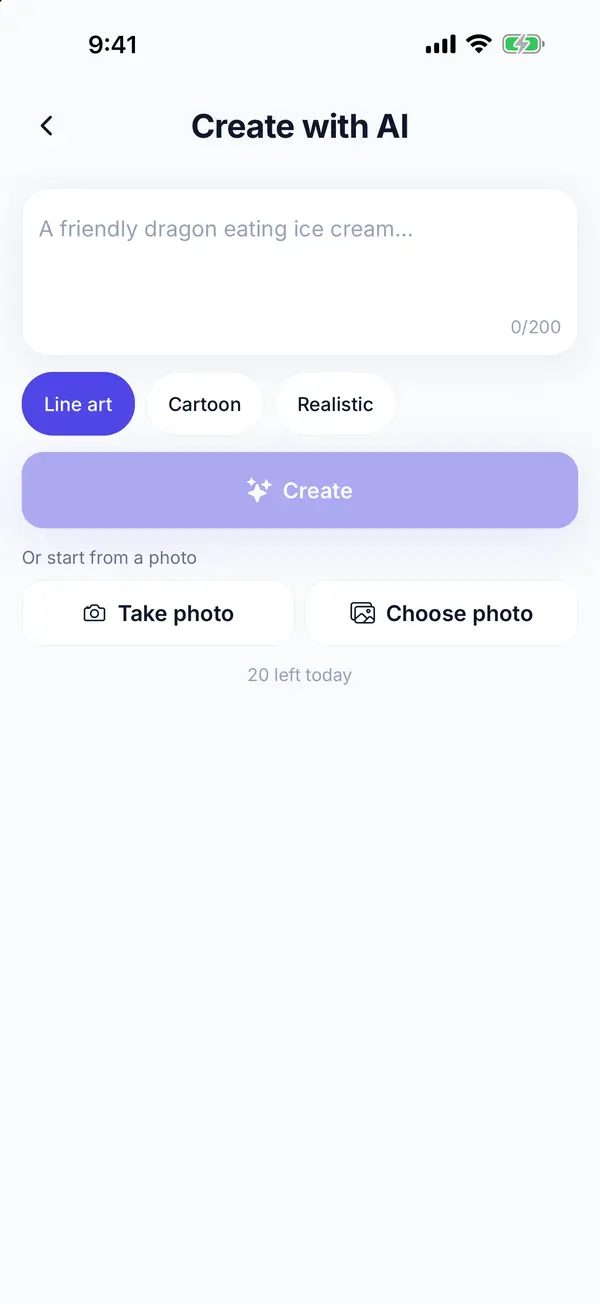
The Create with AI screen with the description “A friendly dragon eating ice cream”, a line art style selected, and buttons to take or choose a photo instead.

Create with AIPro

Describe what you want and get back a clean outline to draw. Or start from a photo and let it become line art — useful when the picture you want is the one in front of you.

Three styles: line art, cartoon and realistic. A photo you send is used once to make the picture and is never stored.

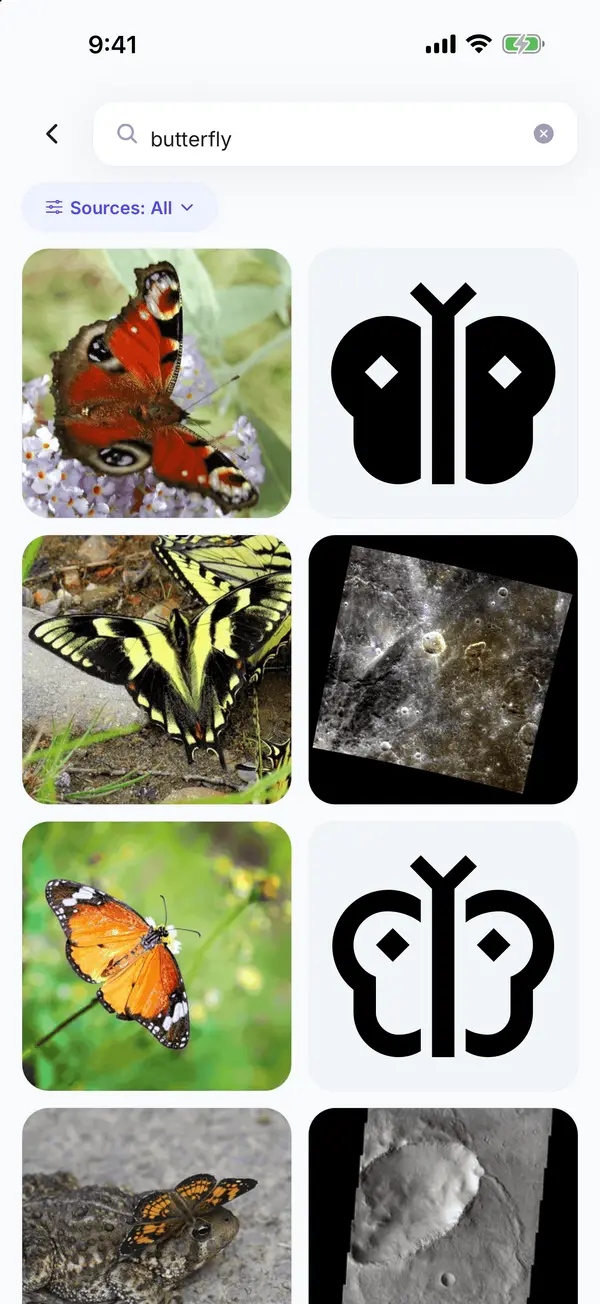
Search results for “butterfly”: photographs of butterflies interleaved with simple black and white outline pictures.

Safe image search

One search asks nine sources — Pixabay, Openverse, Pexels, Unsplash, Smithsonian, iNaturalist, NASA, Iconify and Google — and interleaves what they send back, so photographs and simple shapes arrive together. The Sources picker decides which of them to ask.

Safe Search is always on and cannot be switched off. Every result keeps its source and its licence, and the preview screen links back to where the picture came from.

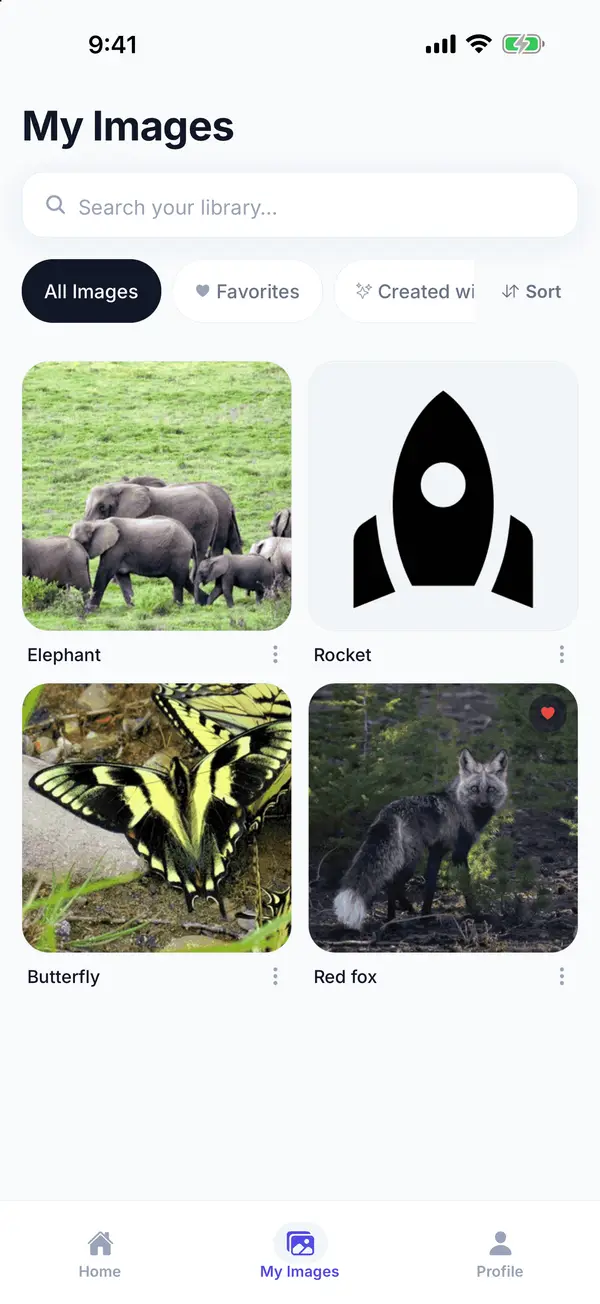
The My Images library showing four saved pictures — elephants, a rocket, a butterfly and a fox — with tabs for all images, favourites and pictures created with AI.

My Images

Anything you save goes to My Images and stays there. Rename a picture, mark a favourite, search your own library, and pick a drawing up where you left it.

Pictures made with Create with AI get their own tab, so what you made stays separate from what you found.

Built for families

The app was built by a parent for their own kids, and it is set up that way by default.

  • Safe Search is always on

    It cannot be switched off, on any account, at any age.

  • Nothing from the camera is recorded

    Trace Mode shows the camera on screen. It never saves or uploads what it sees.

  • No ads over the canvas

    The drawing surface stays the drawing surface.

  • No public profiles, no messaging

    There is nobody inside the app for a child to talk to.

What it costs

Searching, saving, drawing and tracing are free. Pro adds Create with AI.

  • Free

    $0no subscription

    • Search nine image sources, with Safe Search always on
    • Up to 50 searches a day
    • Save up to 100 pictures to My Images
    • Draw Mode and Trace Mode, in full
  • Pro

    $4.99a month, or $29.99 a year

    • Everything in Free
    • Create with AI, from a description or a photo
    • Three styles: line art, cartoon and realistic
    • Up to 20 creations a day
    • What you make gets its own tab in My Images
    Get the app

Introductory pricing — subject to change at launch.

Questions

What does Sketch Anything do?

Type what you want to draw. The app searches nine image sources, shows you what it found, and then helps you draw the picture you pick — on the screen in Draw Mode, or on paper in Trace Mode.

What is the difference between Draw Mode and Trace Mode?

Draw Mode locks the picture on the screen so you can copy it by eye, and lets you fit, zoom, rotate, mirror and fade it while you work. Trace Mode lays the picture over the live camera, so when the phone looks down at your paper you can trace the lines straight through it.

Is it safe for children?

Safe Search is enforced on every source that offers it and cannot be switched off, on any account, at any age; the rest are curated archives. There are no public profiles and no messaging, so there is nobody in the app for a child to talk to.

What does it cost?

Searching, saving, Draw Mode and Trace Mode are free. Create with AI is part of Pro, a monthly or yearly subscription — the current prices are on the pricing page, and they are introductory.

Where do the pictures come from?

Nine image sources — Pixabay, Openverse, Pexels, Unsplash, Smithsonian, iNaturalist, NASA, Iconify and Google. You can choose which ones to search in the Sources picker.
Start drawing

Search, save, draw and trace are free. Get the app and find the first thing you want to draw.

Get the app