How it works
Three steps, and the third one is the drawing. Nothing here needs an account except saving.
Step 1: Search it
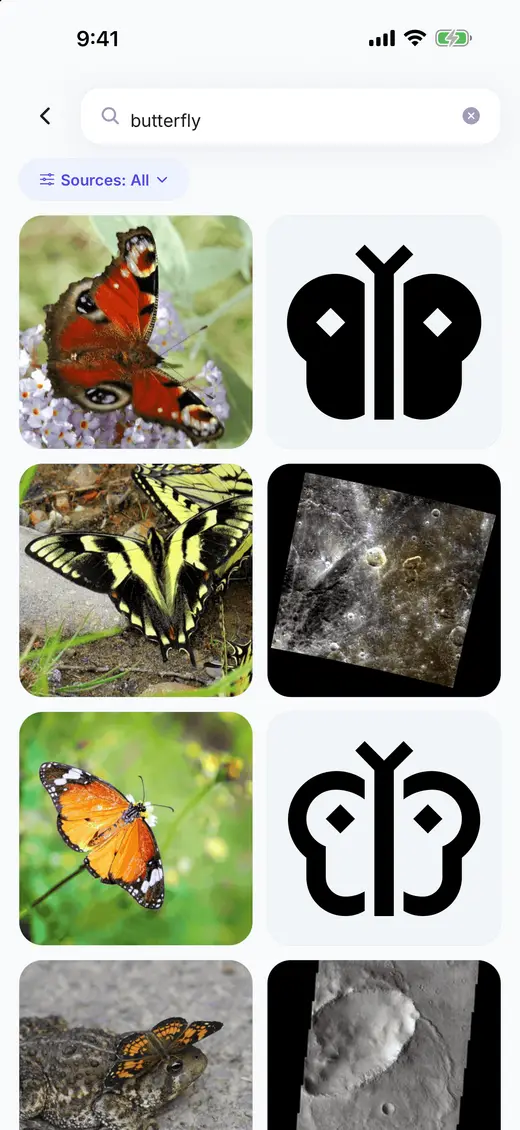
Type what you want to draw. The app asks nine image sources at once and brings back photographs, drawings and simple outlines together, with Safe Search always on. Open a result to see where it came from and what licence it carries.
Step 2: Save it
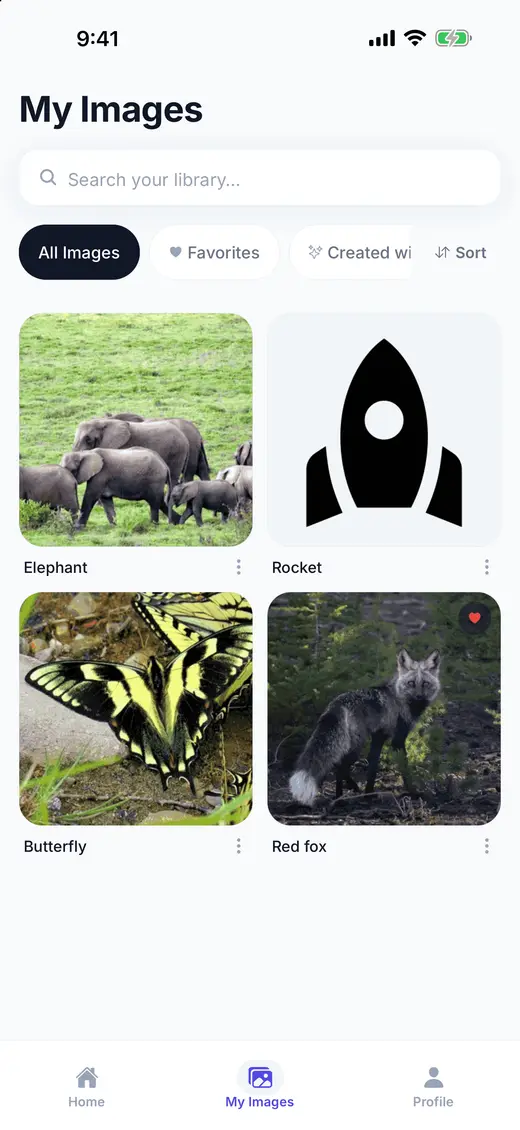
Keep the ones you like in My Images. Rename them so you can find them later, mark the favourites, and sign in on another phone to find the same library waiting. Saving is the one thing that needs an account.
Step 3: Draw it or trace it
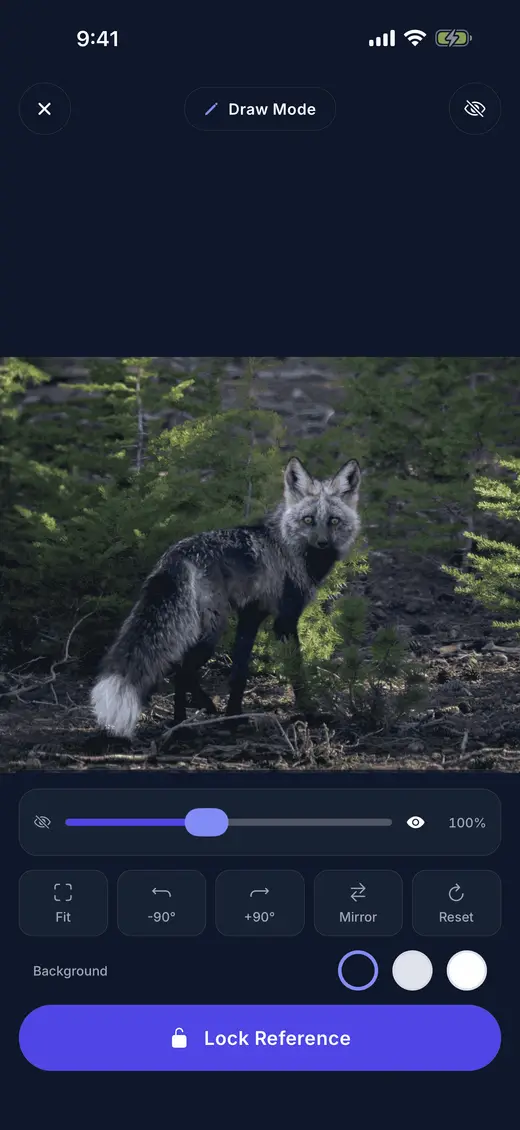
Open the picture in Draw Mode to copy it from the screen, or in Trace Mode to trace it through the camera onto your paper. Both let you fade the picture down as your own lines appear, and both lock so nothing moves while you work.
Draw or trace?
Two ways to get the picture onto paper. Most people use both, depending on what they are drawing.
| Draw Mode | Trace Mode | |
|---|---|---|
| Where the picture is | On the screen, next to your paper. | Over the live camera, so it looks like it is lying on your paper. |
| What you do | Look at it and copy it by eye. | Draw the lines where you see them through the screen. |
| What you need | A phone and something to draw on. | A phone, paper, and a way to hold the phone still above the page. |
| What you can change | Fit, zoom, rotate, mirror, opacity, a dark or light background, and a lock. | Opacity, a lock that also holds focus and exposure, the torch, brightness, and grayscale, contrast or outline filters. |
| Good for | Learning to see shapes, and a drawing that is entirely your own hand. | Getting an outline exactly right, or starting something large before you draw the detail. |
Getting the most out of Draw Mode
- Fit the picture first, then zoom into the part you are drawing. Reset puts it back.
- Lock the picture before you start. Locking stops the canvas taking touches, so a hand resting on the phone cannot move it.
- Fade the opacity down as your lines appear — it is the quickest way to see whether your shapes match.
- Mirror the picture if a face or a body is turned the wrong way for the pose you want.
- The screen stays awake for as long as the session is open.
Getting the most out of Trace Mode
- Start at around half opacity. Strong enough to follow, faint enough to see your own pencil.
- Lock the picture once it is lined up. The camera stops refocusing every time your hand passes underneath.
- Switch to the outline filter for lines instead of a photograph, and pick Thin, Normal or Bold for how much detail survives.
- Use the torch in a dim room, or lift brightness if the paper is reading grey.
- If you knock the phone, the app says so. Line the paper up again before carrying on.
Start drawing
Search, save, draw and trace are free. Get the app and find the first thing you want to draw.
Get the app