Trace Mode
Lay the picture over the live camera and trace it onto the page.
What it is
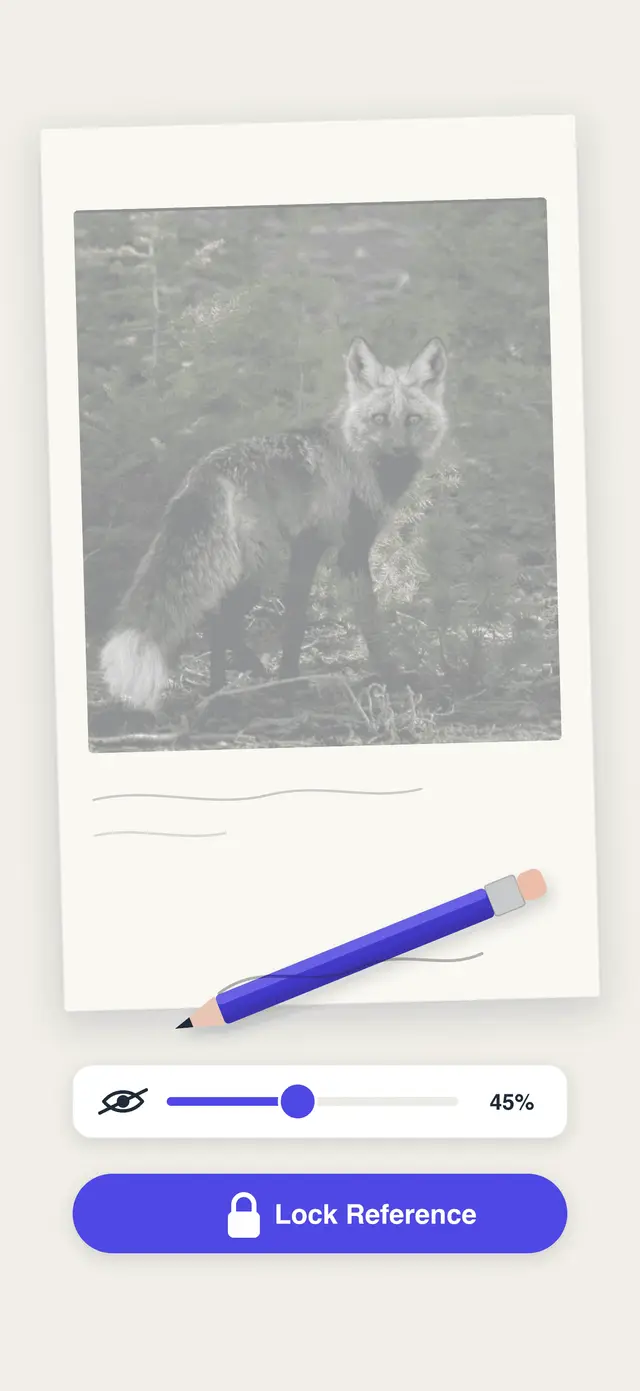
Trace Mode puts the picture on top of what the camera sees. Rest the phone above your paper, look through the screen, and the picture appears to be lying on the page — so you draw the lines where you see them.
The picture is fixed to the screen, not to the table. There is no augmented reality holding it in place and nothing to drift; if you move the phone, you move the picture with it. That is also why the app tells you when the phone has shifted.
Nothing from the camera is recorded. It is a preview and only a preview: no frame is saved, and no frame is uploaded.
How it works
- Open a picture and choose Trace. Put the phone over your paper — a stand or a phone holder is much steadier than a hand.
- Line the picture up with the paper, set how strongly it shows, and lock it. Locking also locks the camera’s focus and exposure, so the preview stops hunting every time your hand passes under it.
- Trace the lines through the screen. When you are done, unlock, move the paper, and go again.
Tips
- Switch the filter to Outline when you want lines instead of a photograph. Thin, Normal and Bold set how much detail survives, and Fine tune moves the threshold by hand.
- Turn the torch on in a dim room, or lift the Brightness control if the paper is reading grey.
- Grayscale and Contrast are the gentler filters — useful when a picture has the right shapes but the colours are fighting you.
- If you knock the phone while the picture is locked, a message says so. Line the paper up again before you carry on.
- Left-handed controls in Profile, under Preferences, move the toolbar to the other side.
Where to next
- Draw Mode, for copying from the screen instead of through it.
- Create with AI, which turns a description or a photo into clean outlines that trace well.
- How it works, the whole thing from search to finished drawing.
Start drawing
Search, save, draw and trace are free. Get the app and find the first thing you want to draw.
Get the app