Draw Mode
Hold the picture still on the screen and copy it onto paper.
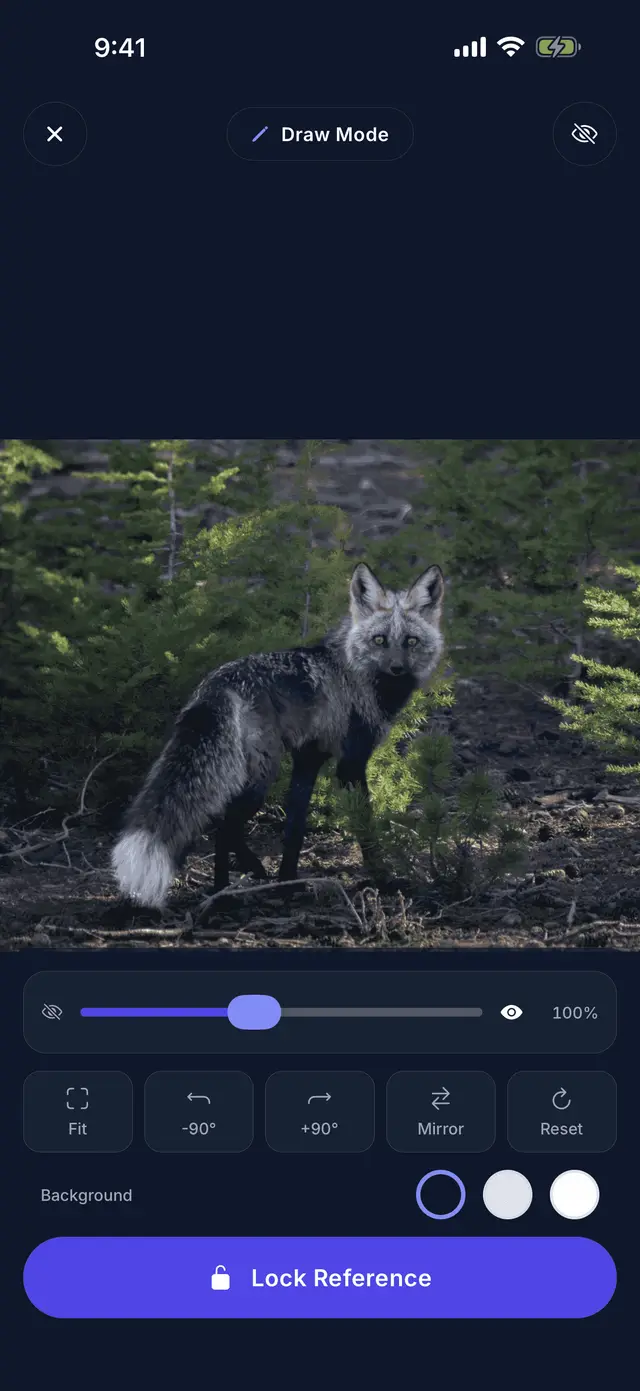
What it is
Draw Mode is the screen you use when the paper is beside the phone rather than under it. The picture you picked sits on the canvas and stays exactly where you put it, so you can look up, draw a line, and look back down to the same thing you were looking at before.
Everything about the picture is yours to set: where it sits, how big it is, which way round it faces, and how strongly it shows. None of it changes what you save — the original picture is untouched, and the next time you open it the session picks up where you left it.
How it works
- Find a picture, open it, and choose Draw. You do not need an account for this.
- Set the picture up. Drag it, pinch to zoom, turn it by ninety degrees, mirror it, or fit the whole thing to the screen. Reset puts it back if you go too far.
- Lock it and start drawing. Locking makes the picture genuinely immovable — the canvas stops taking touches, so a hand resting on the phone cannot nudge it.
Tips
- Fade the picture down with the opacity slider as your own lines appear. It is the quickest way to see whether your drawing matches the shape underneath.
- Switch the background between dark and light depending on the room you are in.
- Mirror the picture when a face or a body is turned the wrong way for the pose you want.
- The screen stays awake while a session is open, so you can draw for an hour without the phone dimming on you.
- If you are left-handed, turn on left-handed controls in Profile, under Preferences. The toolbar moves to the other side on both drawing screens.
Where to next
- Trace Mode, for when the phone goes over the paper instead.
- My Images, where the pictures you save are kept.
- How it works, the whole thing from search to finished drawing.
Start drawing
Search, save, draw and trace are free. Get the app and find the first thing you want to draw.
Get the app